Summing Values: Simple Sums with Formulas and Functions
While I have briefly talked about the =SUM() function before (see my posts Formulas and Functions: How to Make Calculations in Excel and Auto-Sum and other Functions: How to Make Calculations in Excel), we will look at this function in more detail today. Conditional sums will be introduced in the next post.
Summing as a formula
You could manually select all cells you wish to sum up. For example =C2+C3+C4 would sum up the values in the cells C2, C3 and C4. This option works fine if you only have a handful of cells you wish to summarise. However, the more cells there are, the more time-consuming it becomes. This would also risk mistakes such as accidentally missing a cell or selecting another one twice. If you need to sum up a lot of cells, the function =SUM() will be your friend.
=SUM() with one set of cell references
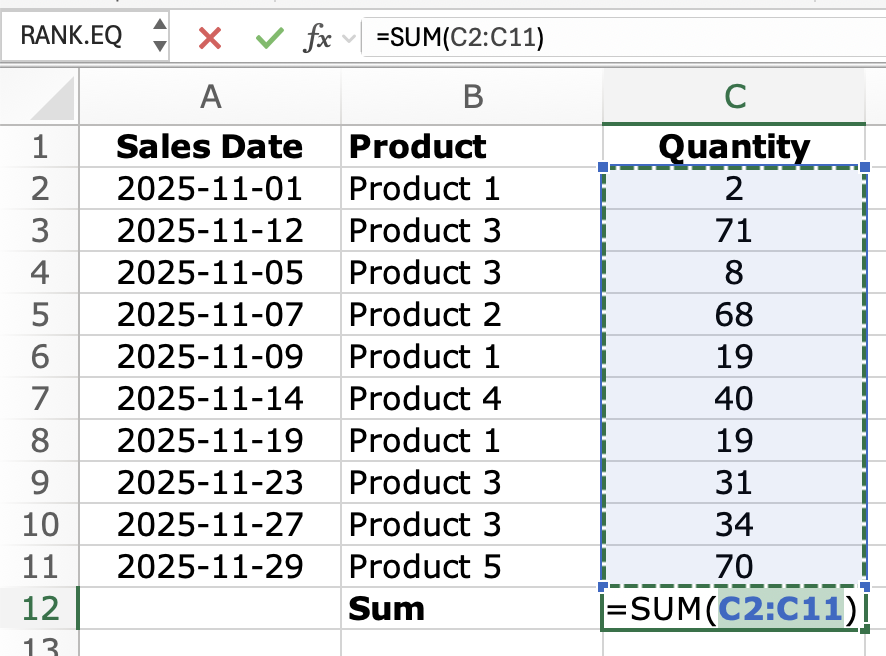
A simple way to use the SUM()-function is by adding one cell reference into it, such as:
=SUM() with one several cell references and whole columns as reference
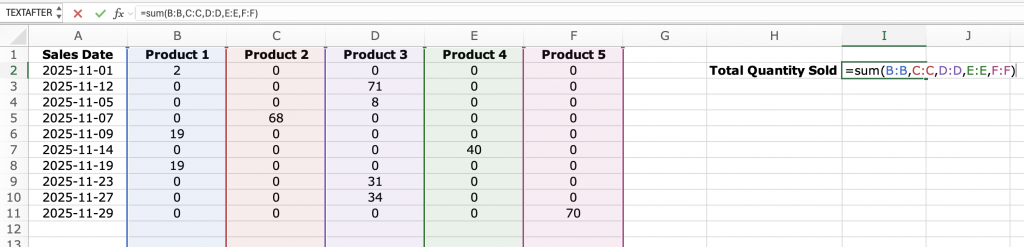
If you wish to sum data that is split up across several sections, you can easily add these other sections into your =SUM()-function. You will need to separate them with a comma.
You can also select whole columns as cell-reference. This option comes in handy when you have a database where new lines are regularly added (like a list of sales per date, as I use in my example). If you use the whole columns as references, you only have to set up the formula once and it will automatically update the content.
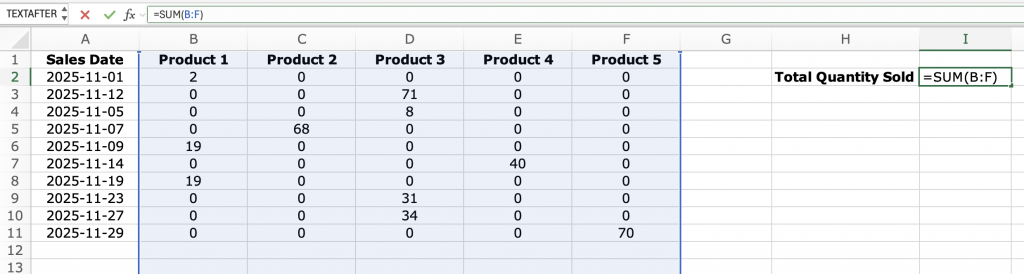
Now, the example I have given you above can be even more simplified: As these columns are right next to each other, you should set up the function as =SUM(B:F). Excel will then automatically sum up everything that is currently in this cell-area, and additionally add anything you add in the future in any of these columns:
=SUM() horizontally with row references
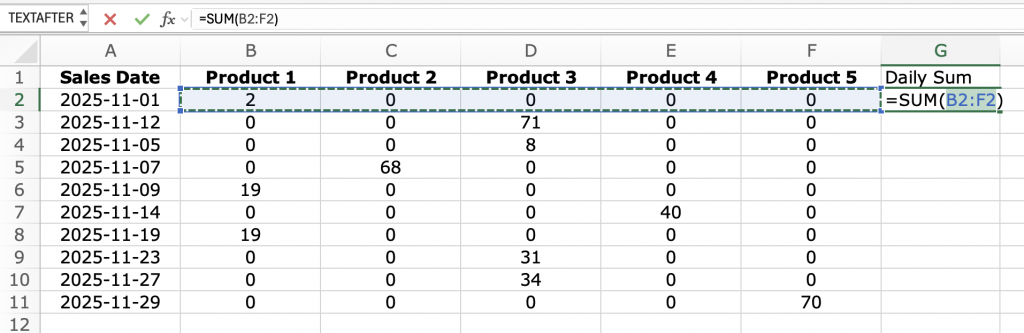
If you wish to sum values across a row (horizontally) rather than across columns (vertically), the function set-up will be the same. This could be used, for example, to sum up the sold items by date rather than by product: