Auto-Sum and other Functions: How to Make Calculations in Excel
Excel provides a shortcut for the most commonly used functions. You can find this in the Home-Ribbon under the Section Editing, called Auto-sum.

If you click on the name Auto-sum Excel will automatically add a sum formula into the cell you are currently in and highlight the area it thinks you wish to sum up. This suggestions is based on the data surrounding the cell you are currently in. In my example below you can see that Excel suggest I sum up the Quantity rows above the cell I have highlighted for the sum:
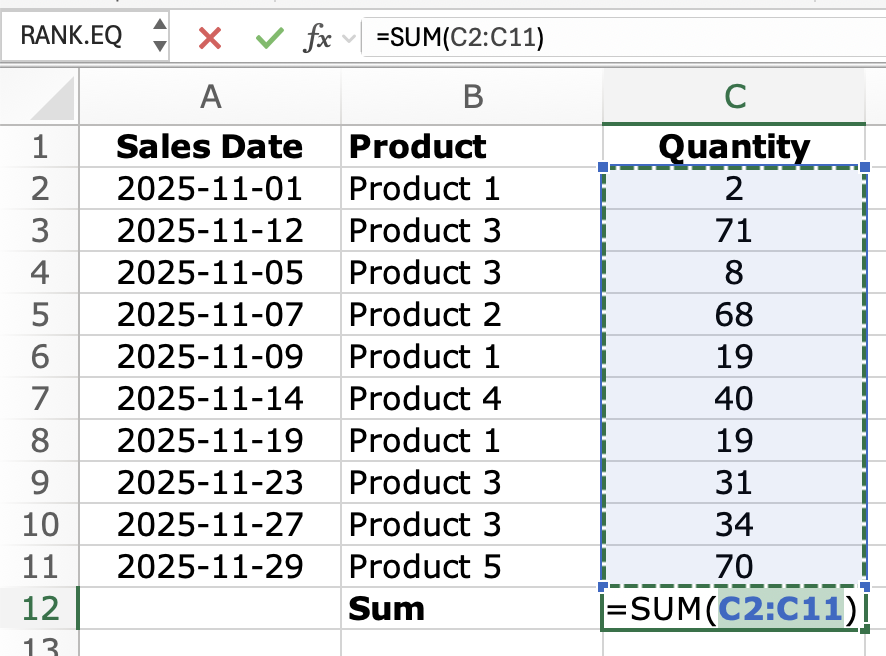
Should your spreadsheet be set up to have numbers vertically instead of horizontally (across columns rather than across cells) and your curser is in the cell next to those, Excel will suggest a sum across these values rather than the ones above your selected cell.
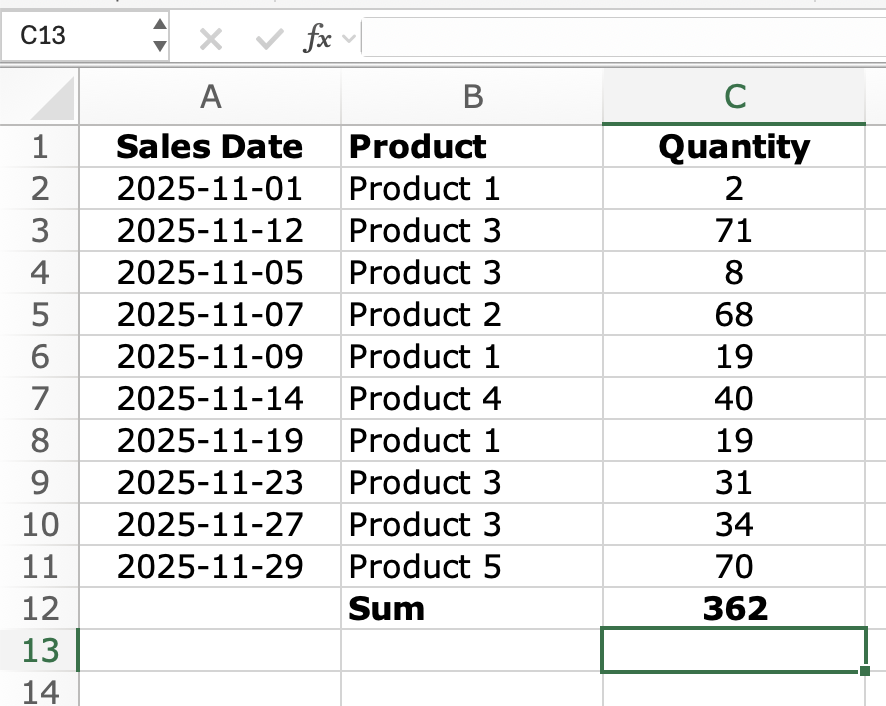
If you are happy with the selection Excel has made for you, confirm by pressing enter. Should you wish to sum up a different area, select the area before pressing enter. Once you pressed enter, the cell below will automatically be selected, and the formula preview changes to the result. Have a play around with it and see how the result changes if you change some of the numbers in the cell reference area 😊
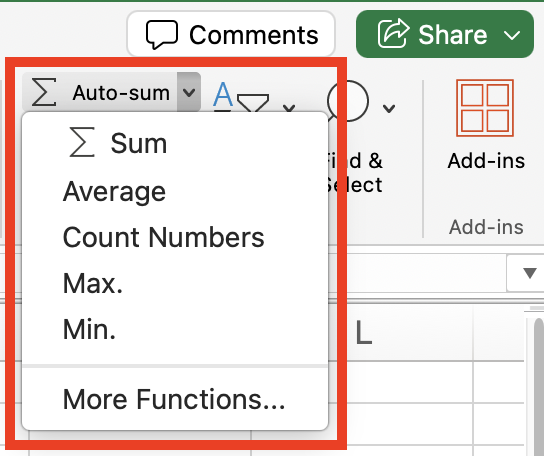
By pressing on the arrow next to Auto-sum, the menu will give you even more options to choose from: Count Numbers, Max and Min. Selecting any of these will populate the steps outlined above with the relevant other formula. The only difference of these options is More Functions which will bring up the Formula Builder. I will go into more detail about this feature in a future post.
Bonus: Hidden Auto-Function Shortcut.
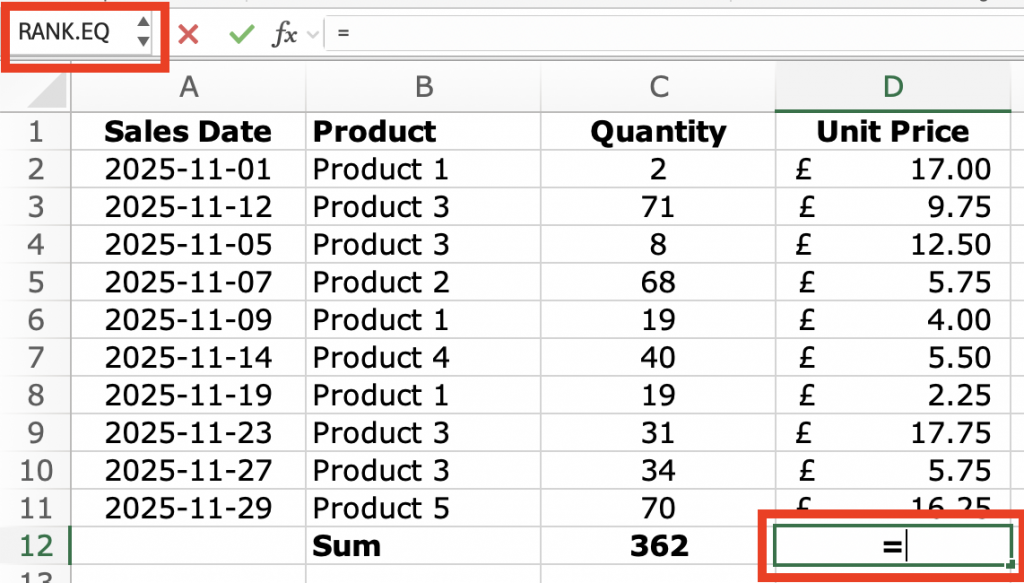
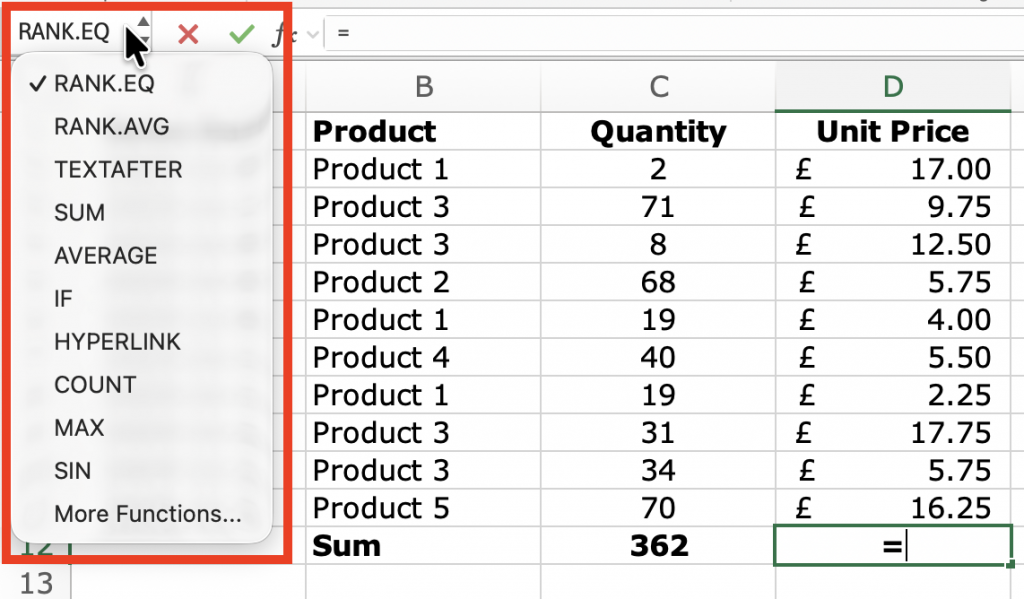
You might have noticed it in some of my screenshots across my blog. In fact, this hidden feature has shown itself in a screenshot earlier in this post. Once you are in a cell and start creating a formula (by entering the equal sign), the cell navigation pane with display RANK.EQ instead of the cell name. This is another auto-function shortcut. Alongside some of the formulas of the Auto-sum menu, this one brings up some more advanced functions.